
Quick Start: Try It Now (2 Minutes)
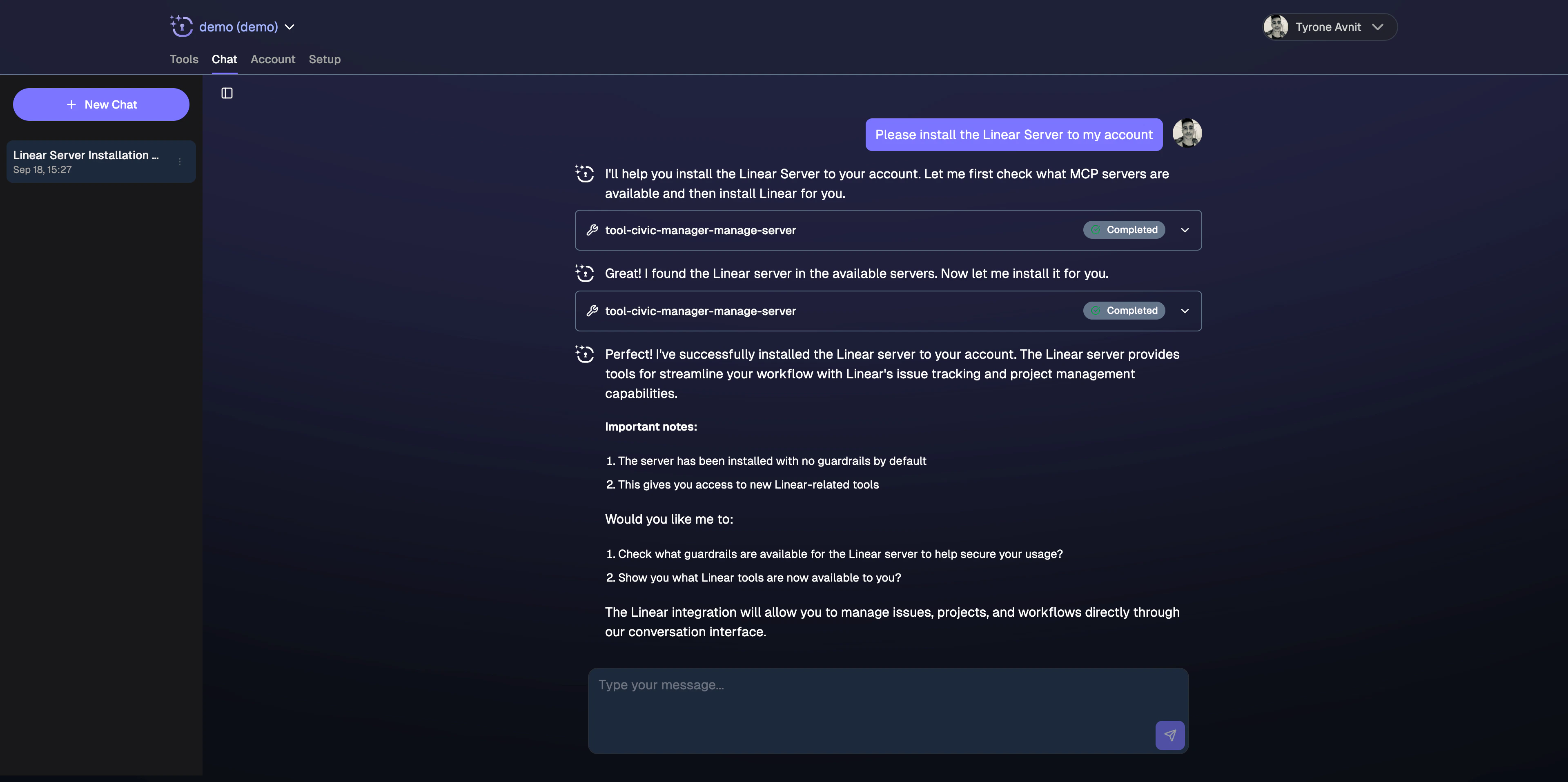
Easiest Way: Test Directly in Civic
Visit nexus.civic.com
Sign up and browse dozens of available MCP servers
Try Civic Chat Now
Fastest way to get started - No client setup, no configuration, just sign up and start chatting
Optional: Connect External AI Clients
Once you’ve tried it in Civic chat, connect your favorite AI assistant for convenience:Choose Your AI Client
Primary Option (Recommended)
Try Civic Chat first - no setup required:Civic Chat
Zero Setup - Sign up and start using tools immediately (0 mins)
External AI Clients (Optional)
Claude Desktop
Experimental - Direct connector (2 mins)
Claude.ai
Experimental - Web interface (2 mins)
Mistral LeChat
Available Now - Direct connector (2 mins)
Why external clients? While Civic Chat provides the best experience with zero setup, external clients can be useful for specific workflows or when you prefer a particular AI interface. Claude and Mistral LeChat offer direct MCP connector support with minimal configuration.
Development Tools & Advanced Clients
Developer Setup Guide
Setup guides for Cursor, VS Code, JetBrains IDEs, and other development tools
All Other Supported Clients
Cursor
AI code editor • 3 mins
VS Code
Popular IDE • 3 mins
JetBrains IDEs
IntelliJ, PyCharm • 5 mins
Windsurf
Codeium AI IDE • 5 mins
Goose
Block’s dev agent • 5 mins
More...
See all supported clients
Two Setup Methods
Direct Connection (Recommended for Chat)
For: Civic Chat (built-in) The best method for getting started:- Visit nexus.civic.com and select tools
- Click “Chat” to start using tools immediately
- No configuration, authentication handled automatically
- ✅ Zero setup required
- ✅ All tools available instantly
- ✅ No client installation needed
- ✅ Works across all devices and browsers
Direct Connector (External Clients)
For: Claude Desktop, Claude.ai, Mistral LeChat For users who prefer external AI clients:- Visit nexus.civic.com and select tools
- Copy the MCP URL:
https://nexus.civic.com/hub/mcp - Add as a custom connector in your AI client settings
- ✅ Specific workflow preferences
- ✅ Integration with existing toolchains
- ✅ Works across all devices
- ✅ Automatic updates and maintenance
Hub Bridge (Development Tools)
For: Cursor, VS Code, JetBrains, Windsurf, CLI tools Development tools use the Hub Bridge - a local proxy that handles authentication:Developer Setup Guide
Complete setup instructions for all development tools including Cursor, VS Code, JetBrains IDEs, and command-line clients
- Your client only supports local/stdio MCP servers
- You need project-level configuration control
- You’re working with development environments
- Your client doesn’t support remote MCP URLs
Start with Civic Chat first - Get familiar with available tools and capabilities in our built-in interface, then connect external clients if needed for specific workflows.
What You Can Do
Once connected, ask your AI assistant to use your tools: Development workflows:- “Check my open GitHub pull requests”
- “Create a new issue for the login bug”
- “Show me recent commits in the feature branch”
- “Summarize today’s Slack messages in #general”
- “Send a message to the team about deployment”
- “What files did I upload to Dropbox this week?”
- “Create a new page in our Notion workspace”
Next Step: Organize with Toolkits
Instead of giving your AI access to all tools at once (which can confuse it), create focused tool groups for specific workflows:Marketing Analytics
Google Analytics + Notion + Slack for data analysis and reporting workflows
Developer Debugging
GitHub + PostgreSQL + Notion for investigating and documenting issues
Learn About Toolkits
Improve AI performance - Create focused tool groups that help your AI choose the right tools for each task
Need Help?
Client Compatibility
Full matrix of which clients use which connection method
Troubleshooting
Common setup issues and solutions